
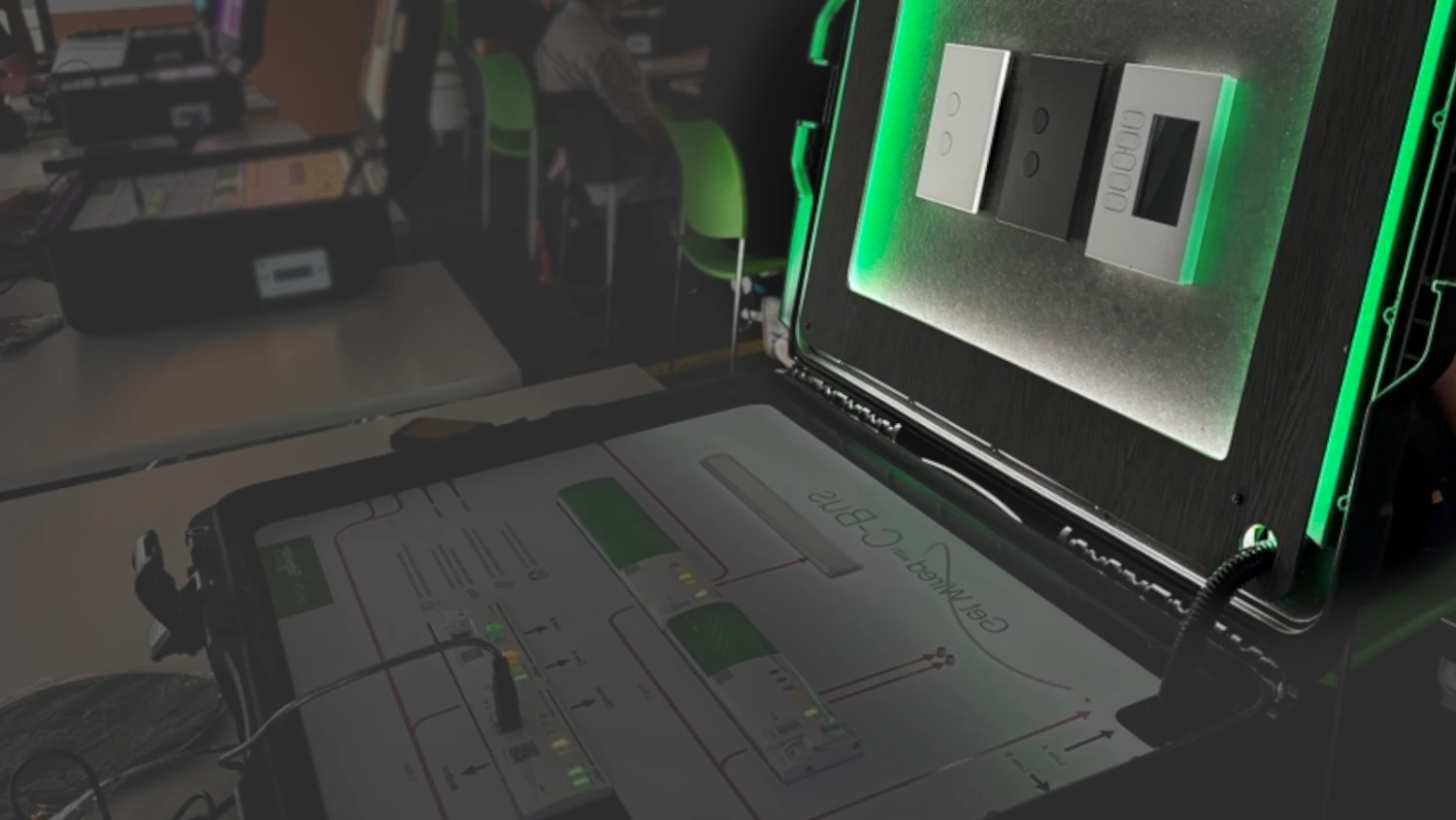
Find C-Bus Frequently Asked Questions
Explore our C-Bus FAQ page for support and troubleshooting information covering C-Bus Commission software, Controllers, Dimmers & Relays, eDLT, and DALI-2. The most frequently asked questions are featured below, and the search function can help you find answers to additional queries (suggested search terms include: cbus commission, edlt, 5500nac2, 5500ac2, dali).
C-Bus Commission
Where are the exported xml files from SpaceLogic C-Bus Commission (SLCC) stored?
Hide ShowThe exported xml files are stored in Documents
Documents\C-Bus Commission\Exported Projects
Can I program another live network device whilst a live network device is being deployed in the deployment queue?
Hide ShowWhich project types can be imported into C-Bus Commission?
Hide ShowAs of SpaceLogic C-Bus Commission v2.15.0, projects of file types: *.c2z, *.cbz and *.xml can be imported as a C-Bus Project
If I make a project change in C-Bus Commission, does that change reflect in C-Bus Toolkit?
Hide ShowChanges can be reflected if the project in C-Bus Toolkit is refreshed by clicking Projects in the menu bar, followed by Refresh
How do I refresh a project in C-Bus Commission?
Hide ShowThe Workspace of a project can be refreshed by clicking on another node, and then back on the node you were previously working on
Where can I find the latest version of C-Bus Commission?
Hide ShowUse the provided link to find and/or download the latest version of SpaceLogic C-bus Commission:
C-Bus Controller
Will the Manager Plugin UI scale for a Schneider 10" IP Touchscreen or a 10" iPad?
Hide ShowAs of C-Bus Controller firmware v2.5.0 the UI generated by the Manager Plugin will scale appropriately
Is there a quick link to display the Manager Plugin UI for a Schneider IP Touchscreen or iPad?
Hide ShowThe Quick Link for the Manager Plugin's UI is: Controller's Ethernet IP Address/apps/data/manager
For example, if the IP Address is 192.168.0.10 then the quick link is: 192.168.0.10/apps/data/manager
How is the C-Bus Controller Powered?
Hide ShowThe C-Bus Controllers can be temporarily powered using a USB-A to USB-B cable via the USB-B port on the front of the controller; however, this only provides limited functionality.
For full functionality the C-Bus Controllers require 24VDC
What is the default IP Address of the C-Bus Controller's USB-B Port?
Hide ShowWhen connected using a USB-A to USB-B cable, you can access the controller's internal web server by:
1. Open a supported browser
2. Entering in the IP Address: 192.168.254.10 (default - does not change)
Where can I find the latest firmware for my C-Bus Controller?
Hide ShowUse the provided link and select the appropriate firmware for your C-Bus Controller (5500NAC2 or 5500AC2):
Dimmers & Relays
How to enable the C-Bus Clock or Power Supply of the Voltage Free Relays?
Hide ShowFor any Voltage Free Relay, the C-Bus Clock can be enabled or disabled via the front panel, by pressing and holding down the top left channel button, and short pressing the top channel button second in from the right.
For any Voltage Free Relay, the C-Bus Power Supply can enabled or disabled via the front panel, by pressing and holding down the top left channel button, and short pressing the top right channel button.
Note: By default both the C-Bus Clock and C-Bus Supply are disabled.
How to enable the C-Bus Clock or Power Supply of the Digital Dimmers?
Hide ShowFor any Digital Dimmer, the C-Bus Clock can be enabled or disabled via the front panel, by pressing and holding down the top left channel button, and short pressing the top channel button second in from the right.
For any Digital Dimmer, the C-Bus Power Supply can enabled or disabled via the front panel, by pressing and holding down the top left channel button, and short pressing the top right channel button.
Note: By default both the C-Bus Clock and C-Bus Supply are disabled.
eDLT
Existing eDLT’s have a specific mounting bracket, 5000MP, will the new Solis™ C eDLT’s use the same mounting bracket as the existing unit?
Hide ShowThe mounting bracket, 5000MP, used for the existing eDLT’s can be used for the Solis™ C eDLT’s
What is the C-Bus power consumption of the Solis C eDLT’s?
Hide ShowThe power consumption of the Solis C eDLT’s are the same as the previous models, 32mA
Can the Solis C eDLT be installed horizontally on the wall?
Hide ShowIt is recommended to install the Solis C eDLT vertically, as the LCD display graphics cannot rotate with the orientation.
Can I program the properties of an eDLT using C-Bus Commission?
Hide ShowSpaceLogic C-Bus Commission v2.15.0 or higher supports the capability to program eDLT's with the following characteristic:
Hardware: v3.0
Firmware: v2.X
How can I update the firmware of an eDLT to v2.X?
Hide ShowA firmware upgrade of an eDLT to v2.X can only be done in C-Bus Commission; however, the eDLT must support hardware v3.0.
Some key points to remember when performing a firmware upgrade using C-Bus Commission:
• In C-Bus Toolkit, you can only upgrade an eDLT’s firmware up to v1.8
• Once you upgrade the firmware to v2.X, you cannot revert to an earlier version
• A firmware upgrade to v2.X will factory reset the unit; the device will need to be re-programmed
C-Bus & DALI-2
How to enable the C-Bus Clock on the 5502CDGP230?
Hide ShowFor the 5502CDGP230, the C-Bus Clock can be enabled or disabled via the front panel, by pressing and holding down the MANUAL button on Line A, and short pressing the ID button on Line B.
What is the purpose of the Read DALI Gateway scan?
Hide ShowA Read DALI Gateway scan helps to rebuild a project from a live/existing & operational C-Bus DALI-2 Gateway that has been previously configured.
The scan retrieves the information stored on the live gateway, including its own programming and programming all connected DALI Devices.
What different scans can be performed on the DALI Line in C-Bus Commission?
Hide ShowAs of C-Bus Commission v2.15.0, the available scans for a DALI are:
1. DALI Scan
2. DALI Device Type Scan
3. Read DALI Gateway
4. Discover Faults
Note: A Scan can also be done by pressing the INSTALL button of each line on the front of the unit
Solis™ C Touch Panel
How do I access the Settings Page on the Solis™ C Touch Panel
Hide ShowTo access the Settings Page:
- Press and hold any one of the four corners of the screen for 10 seconds.
- You will be navigated to the Countdown Page
3: Tap Settings
Alternatively, power cycling the touch panel will also navigate you to the Countdown Page, after which you can tap Settings
How can to perform a Factory Reset on the Solis™ C Touch Panel?
Hide ShowTo perform a Factory Reset:
- Navigate to the Settings Page
2: Tap System
3: Tap Reset
Alternatively, power cycling the touch panel will also navigate you to the Countdown Page, after which you can tap Settings
When replacing the Ethernet Touch Panel 5000ETP10W with the Solis C Touch Panel, can I use the original plug pack / power supply?
Hide ShowNo, the touch panels have different power requirements which means the plug pack for the 5000ETP10W can't be used. However, both devices support PoE so that method can be re-used.
Can I use the mounting Wall Box 5000ETP10WB to install the Solis C Touch Panel?
Hide ShowThe 5000ETP10WB is not compatible with the Solis C Touch Panel. A list of compatible & incompatible wall boxes, brackets, plates & clips is provided below:
A custom frame may be required to be made for 5000CTCWB, 5000CTCNA & 5000CTCRM to help ensure a clean installation.
Key Input Units
Can I directly replace my Saturn Key Input Unit with the Solis™ C Key Input Unit without making any changes to the wall it is mounted on?
Hide ShowWhen replacing an existing Key Input Unit with the Solis™ Key Input Unit, a cut-out modification is required for the product to fit, and the new fascia extends approximately 33 mm further at the bottom compared to the existing Key Input Unit, while remaining the same at the top.
What is the IP Rating of the Solis™ C Key Input Units?
Hide ShowThe IP Rating of the Solis™ C Key Input Units is IP20
Search Frequently Asked Questions
Explore more SpaceLogic C-Bus resources

C-Bus software and updates
Access our software, updates and quick start guides here.
C-Bus Training Courses
Browse our collection of self-paced, online training courses on SpaceLogic C-Bus functionality, controllers, wall plates, DALI-2, and more.

Technical support
Ask our technical support team for any software or hardware questions.
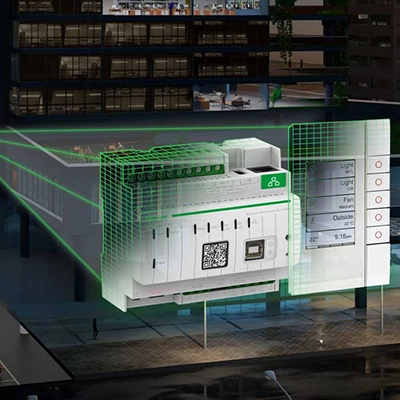
SpaceLogic C-Bus Training & Resources
Advance your expertise with C-Bus training, software tools, and technical resources on SpaceLogic C-Bus, designed for electricians, system integrators, and automation professionals.